Windows
There are two ways to use the app on Windows, either via the Microsoft Store or by downloading the executable directly.
Both versions are functionally identical. However, they differ in how they are installed and receive automatic updates.
It might take up to a few days to get the updates on the Microsoft Store because of the additional verification process done by Microsoft. The EXE version gets the updates within minutes.
Microsoft Store Version
Microsoft Store version of SiLVi is currently under preparation.
EXE Version
On Windows, any app outside the Microsoft Store needs to be code-signed to be marked safe by the operating system. Unfortunately, certificate authorities only issue these code-signing certificates to registered companies. Therefore, for the first installation, permission to run the app must be granted by the user.
Please follow the instructions below for the installation of the app on Windows. These steps need to be done only once. Each subsequent update will be downloaded and installed by the app automatically.
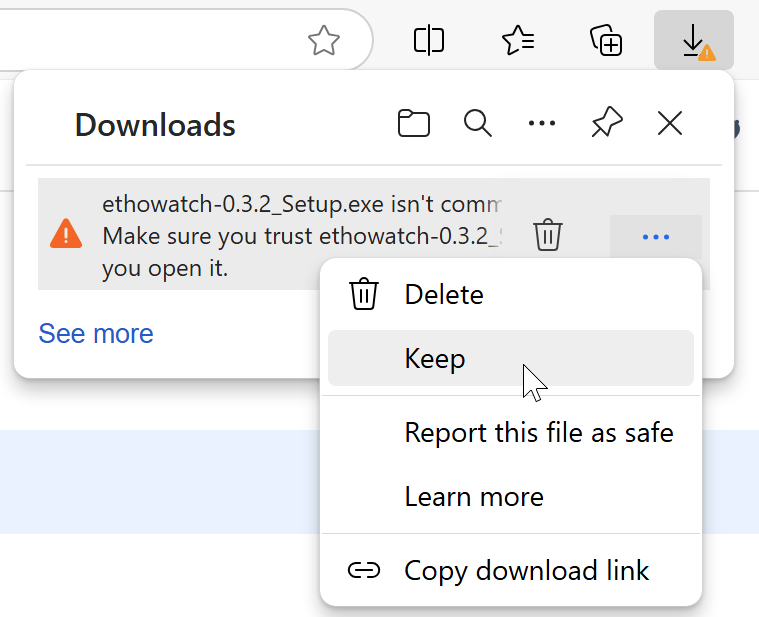
On your browser, click the three dots next to the downloaded file and select *Keep*.
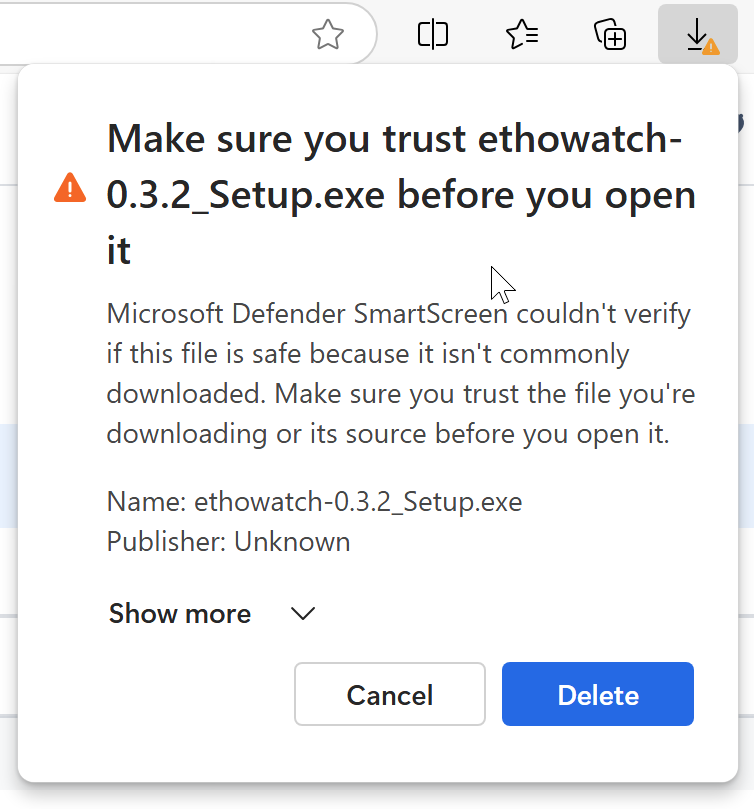
Click Show more.
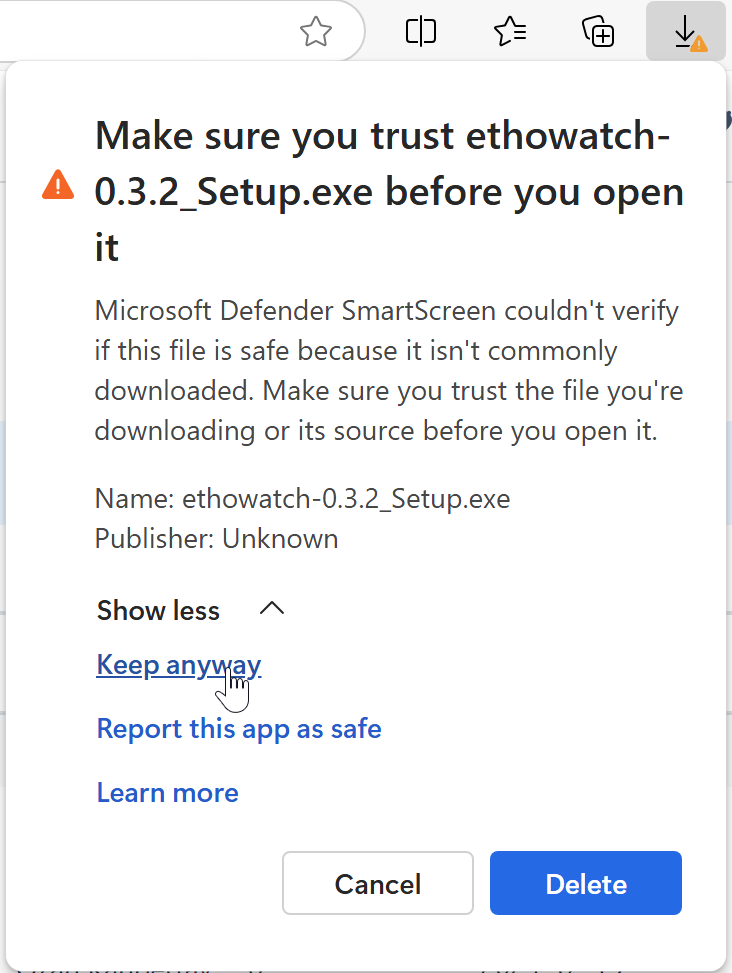
Select Keep anyway.
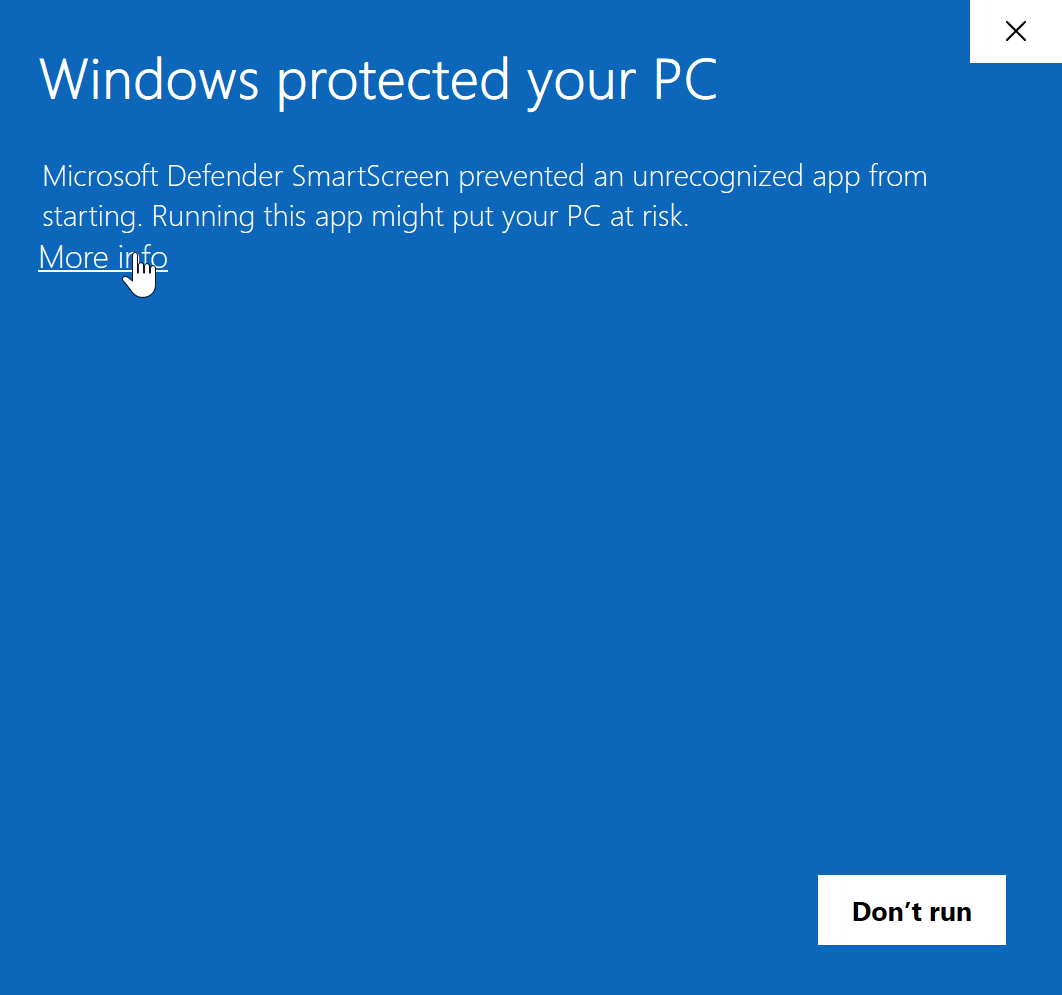
Click More info on the Microsoft Defender SmartScreen prompt.
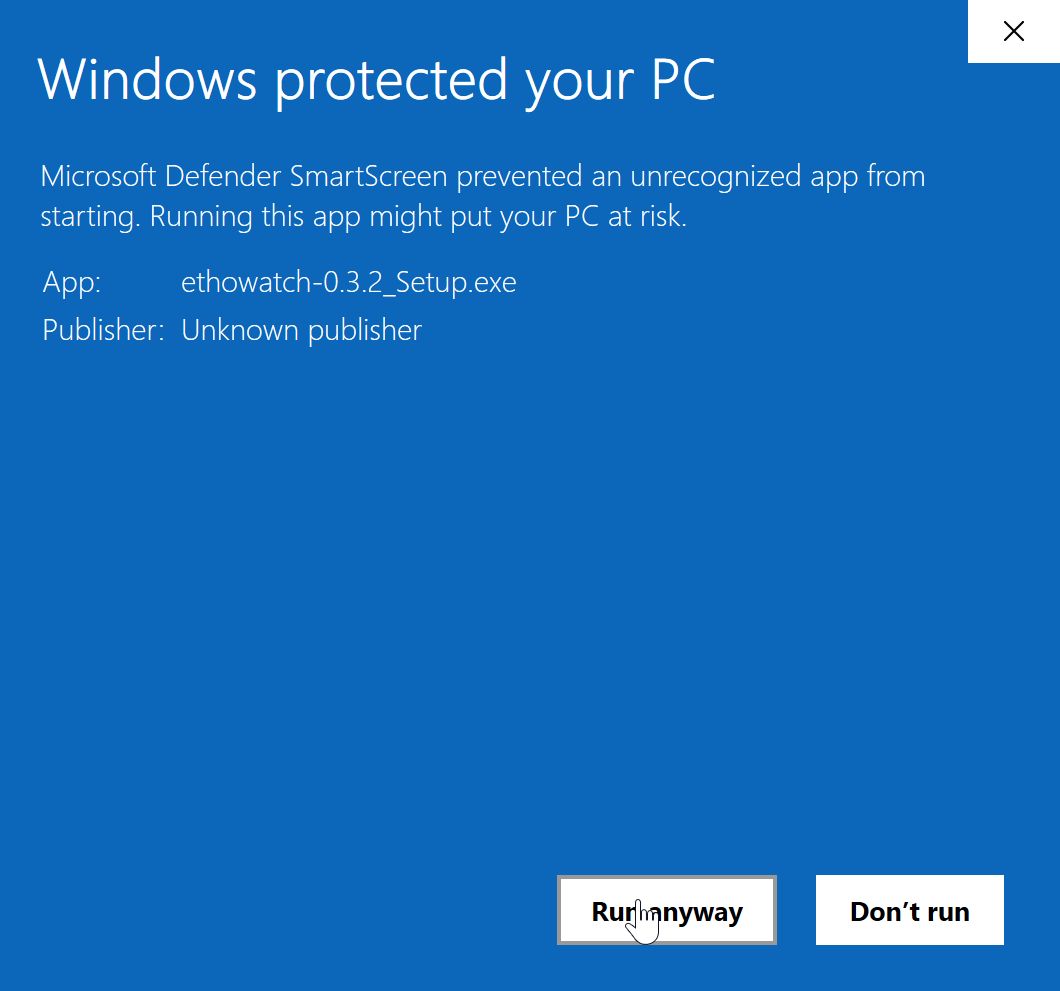
Finally select Run anyway.